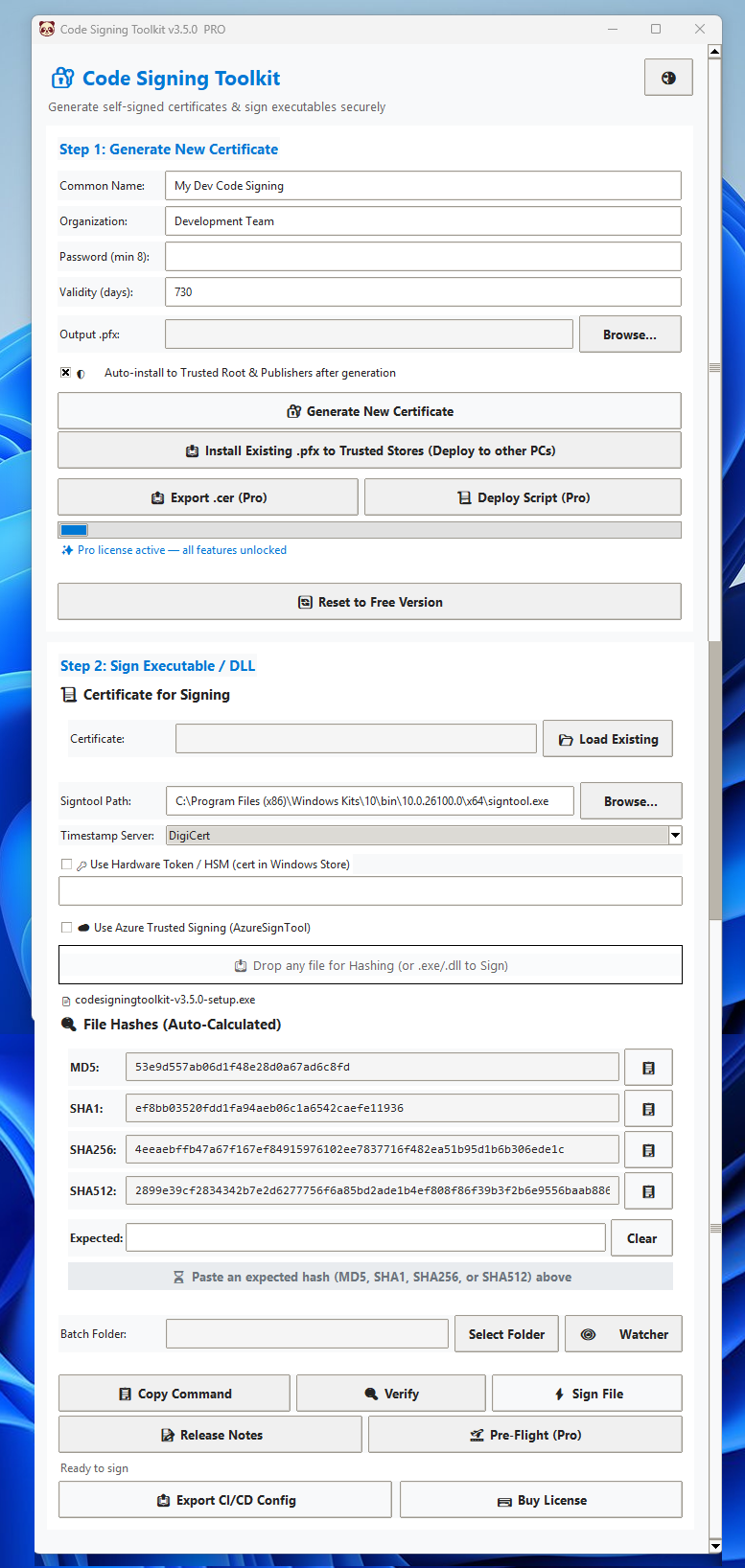
Code Signing Toolkit is a Windows desktop application for developers, software publishers, IT professionals, and security teams who need a simple way to sign and verify Windows software.
Generate or load certificates, digitally sign EXE, DLL, MSI, SYS and other supported files, add RFC 3161 timestamps, verify Authenticode signatures, compare SHA256 hashes, and run release checks before distributing your software.
💡 First run? The app will auto-detect signtool.exe. If missing, install
Windows SDK
Frequently Asked Questions
Yes, the Free tier includes 10 certificate generations. This allows you to fully test the generation and signing workflow. Once the limit is reached, a prompt will appear offering the Pro upgrade for unlimited generations and advanced features.
Yes. Code Signing Toolkit Pro is built specifically for Windows 10/11 (64-bit) and integrates directly with Windows SDK signtool.exe and Windows Certificate Stores. Linux/macOS support is not planned due to platform-specific signing APIs.
Pro licenses are cryptographically bound to your machine's CPU ID + MAC address hash using HMAC-SHA256. The license key contains a signed payload that validates against your hardware fingerprint at activation. You may request one (1) transfer per 12-month period for hardware failures or major upgrades by contacting support.
If you purchased a Pro or Team license, your license key is generated for the machine you submitted for activation. If you have not received your key, contact support@codesigningtoolkit.com with your purchase details and Hardware ID. Pro and Team licenses are hardware-bound, so the key is designed to work on the activated machine(s).
Open Code Signing Toolkit and click Unlock Pro Features button. Locate the Hardware ID shown in the licensing or activation section. You will need to provide this ID when requesting activation for a Pro or Team license.
Pro licenses are cryptographically bound to your machine's CPU ID + MAC address hash using HMAC-SHA256. The license key contains a signed payload that validates against your hardware fingerprint at activation. You may request one (1) transfer per 12-month period for hardware failures or major upgrades by contacting support.
First, make sure you are activating the software on the same computer for which the license was generated. Pro licenses are cryptographically bound to the machine's hardware fingerprint. If you have replaced hardware or moved to another computer, contact support for a license transfer.
A Pro license is normally bound to one machine. A transfer may be requested in cases such as hardware failure or a major hardware upgrade. The terms allow one transfer per 12-month period.
Yes, depending on your license. The Team License supports activation on up to four machines. Team customers provide the Hardware IDs for the machines requiring activation.
No. Code Signing Toolkit is designed to work offline. Certificate generation, file signing, hashing, and signature verification can be performed locally without sending your files to a cloud service.
No. The core application works locally and does not upload your source code, signed binaries, certificate contents, or private keys to the Code Signing Toolkit servers.
Code Signing Toolkit uses Microsoft's SignTool for Windows code signing. The application can automatically detect signtool.exe. If it cannot find it, install the Windows SDK or Visual Studio Build Tools, then configure the correct SignTool path if necessary.
Code Signing Toolkit is designed for Windows 10 and Windows 11, 64-bit. Windows SDK 10+ or Visual Studio Build Tools containing signtool.exe is also required for signing operations.
Yes. Batch Signing is a Pro feature that allows you to process multiple supported binaries or an entire folder rather than signing files individually.
A self-signed certificate is a certificate that you generate yourself rather than obtaining from a trusted Certificate Authority. Code Signing Toolkit can generate 4096-bit RSA .pfx certificates locally.
Signing an application does not automatically make a self-signed certificate trusted by Windows. A self-signed certificate is not equivalent to a publicly trusted CA-issued certificate. For public distribution, use a certificate issued by a trusted Certificate Authority.
RFC 3161 timestamping adds a trusted timestamp to your digital signature. This helps preserve the validity of a signature beyond the expiration of the signing certificate, provided the signature and timestamp remain valid.
Timestamping is strongly recommended for production signing because it establishes when the signature was applied and can help the signature remain valid after the signing certificate expires.
Yes. Code Signing Toolkit supports RFC 3161 timestamping services. The application documentation references services such as DigiCert, Sectigo, SSL.com and GlobalSign.
A properly timestamped signature can remain valid after the signing certificate expires because the timestamp provides evidence that the signature was created while the certificate was valid.
Yes. Code Signing Toolkit supports loading existing certificates, with additional certificate deployment and management features available in Pro.
No. The .pfx password protects the private key contained in the certificate. You should keep your certificate and password securely backed up.
Store your .pfx file in a secure location and protect its password. Anyone who obtains both the certificate containing the private key and its password may potentially be able to use it for signing.
Pro includes an Install Existing .pfx to Trusted Stores feature for deploying a certificate to another Windows computer. The target computer must have the appropriate certificate and password.
The Pre-Flight Release Checker is a Pro feature designed to check whether a signed binary is ready for release. It can check the Authenticode signature, timestamp status, and Mark-of-the-Web conditions that may affect distribution.
Mark-of-the-Web is Windows metadata associated with files obtained from potentially untrusted locations, such as downloads from the internet. Code Signing Toolkit Pro includes tools for checking and handling MOTW-related release issues.
Yes. Code Signing Toolkit includes an Authenticode verification function that allows you to inspect the signature, signer information, timestamp status, and trust-chain information.
Yes. The Universal Hash Generator can calculate MD5, SHA1 and SHA256 hashes for files. It can process many file types, including ZIP, ISO, PDF and EXE files.
Yes. Code signing modifies the file, so its cryptographic hash can change. Code Signing Toolkit can recalculate the hashes after signing so you can verify the final file.
Yes. The Toolkit supports hardware tokens/HSM workflows through Windows cryptographic providers and certificate thumbprints.
Yes. HSM and hardware-token support is included for workflows where certificates are stored in Windows Certificate Store or supported hardware security devices.
Yes. Pro includes CI/CD pipeline export, allowing you to generate signing configurations for automated build environments. Team licensing additionally includes CI Runner licensing intended for build servers.
Yes. The Toolkit can export CI/CD configurations for workflows such as GitHub Actions and Azure DevOps.
The Free tier provides core development features such as certificate generation, single-file signing, hashing and verification. Pro adds features including batch signing, CI/CD exports, trusted-store installation, Pre-Flight checking and commercial-use rights.
According to the licensing terms, the Free tier is intended for personal/internal development and does not grant commercial distribution rights for signed binaries. Commercial use requires an appropriate paid license.
No. The current Pro license is listed as a one-time $29 purchase, while the Team license is listed at $59 one-time.
Yes. Contact support@codesigningtoolkit.com with the relevant purchase information. License keys are retained to support re-downloads, according to the privacy policy.
No. The Hardware ID is generated locally. It is only submitted to the support team when you voluntarily provide it for Pro or Team activation.
No. The application is designed without telemetry, analytics, or usage reporting. Your signing files and certificates remain on your machine unless you explicitly export or share them.
A typical workflow is:
Generate or load a certificate → Select your EXE/DLL → Sign the file → Add an RFC 3161 timestamp → Verify the signature → Run Pre-Flight checks → Release your application.
This can happen when Windows does not trust the certificate chain. A self-signed certificate does not establish public trust. For publicly distributed applications, use a certificate issued by a trusted Certificate Authority.
Code signing can help establish publisher identity, but signing alone does not guarantee that SmartScreen warnings will disappear. SmartScreen reputation and Windows trust mechanisms are separate considerations. The Toolkit's Pre-Flight tools can help identify issues before release.
Yes. You can use an existing certificate, including certificates available through the Windows Certificate Store or supported hardware-token/HSM configurations.
No. Certificate contents and private keys are not collected by the application. The core signing workflow operates locally.
No. Self-signed certificates are intended for development, testing, and internal distribution only. Public software distribution requires a certificate from a trusted Certificate Authority (CA) like DigiCert or Sectigo to avoid SmartScreen warnings and ensure user trust.
The app will auto-detect signtool.exe. If missing, install Windows SDK (the app provides a direct download link for convenience). You can also manually browse to the signtool.exe path within the app settings if it's installed in a custom location.
The complete End User License Agreement (EULA) is included in the software download as LICENSE AGREEMENT.txt. Key terms: no reverse engineering, no key sharing, commercial use requires Pro license, and developers assume all liability for misuse.
No. The application works entirely offline. No telemetry, no analytics, no cloud dependencies. Your certificates, keys, and signed files never leave your machine unless you explicitly export or email them.
Yes. With the Pro license, you can use the "Install Existing .pfx to Trusted Stores - (Deploy to other PCs)" feature. Simply select your generated .pfx file on the target machine, enter the password, and the app will automatically install it into the Windows Trusted Root and Trusted Publishers stores, ensuring your signed executables run without warnings.
The Expected Hash Matcher allows you to paste a SHA256 checksum provided by a software vendor. The toolkit will instantly compare it against the file you dragged into the app, displaying a large, color-coded badge confirming if the file is an EXACT MATCH or if it has been corrupted/tampered with (MISMATCH).
Yes! Native support for Microsoft Azure Trusted Signing, Headless CLI execution, and specialized CI Runner licenses (which bypass hardware binding for ephemeral build servers) are all scheduled for our upcoming v3.0.0 release. Pro and Team license holders will receive these updates for free.